1. Export a SRT subtitle file from Trint.com
After you have uploaded and transcribed your file on Trint.com, you can open the file page on Trint and go to "Export". Select "SubRip (.srt)" from the export window.
2. Use the "Subtitle Tool & Converter" to convert the SRT subtitle file into a Final Cut 7 XML marker file
Open the free Subtitle Tool & Converter, select "SRT" and set "convert" to "Adobe Premiere Pro > Sequence (.xml)". Generate and download the file. Kui teil on faili teisendamisega probleeme, võite pöörduda tasuta toe poole.
3. Import the Final Cut 7 XML marker file into Adobe Premiere Pro
To import timeline markers, go to "File -> Import" and select the XML file.
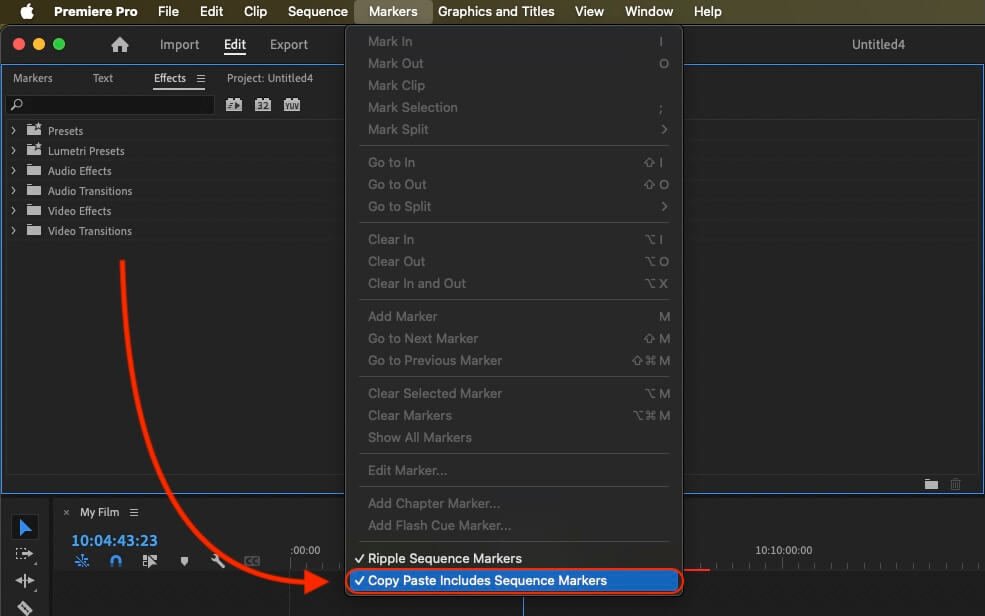
If you want to copy these markers into the existing sequence, use the adjustment layer or any other video as placeholder. Then copy the clip and switch to your existing sequence. Move the cursor to the location, where the adjusmtent layer or first marker appeared in the other sequence. Then past it. It will only copy the timeline markers if under setting (in the Markers menu) the option "Copy Paste Includes Sequence Markers" is active.
🚀 Valmis
Selleks korraks kõik! Kui see õpetus oli teile kasulik, jagage seda, et meid toetada. Kui teil on ettepanekuid, kuidas töövoogu paremaks muuta, andke meile teada!