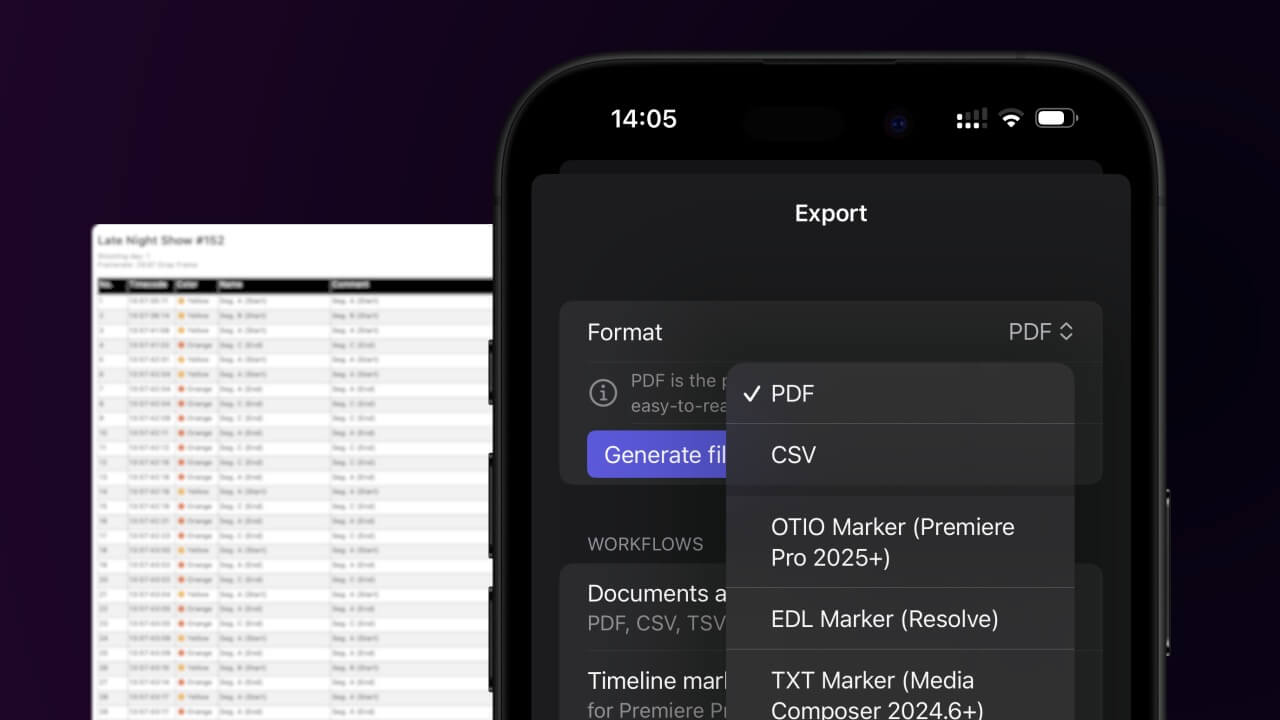
1. Export a CSV file from Live Timecode Notes app
Open the project in the app, then select "Export Notes" from the top menu. Select "CSV". Generate and save the file.
2. Use the "Märgistusmuundur" to convert the CSV file into a XLSX file
Open the free Märgistusmuundur, select "CSV" and set "convert" to "XLSX". Generate and download the file. Kui teil on faili teisendamisega probleeme, võite pöörduda tasuta toe poole.
Ensure that the CSV file contains columns labelled "Timecode In", "Name" and "Comment". Otherwise, it will not work. You can also add columns for 'Colour' and 'Timecode Out'.
🚀 Valmis
Selleks korraks kõik! Kui see õpetus oli teile kasulik, jagage seda, et meid toetada. Kui teil on ettepanekuid, kuidas töövoogu paremaks muuta, andke meile teada!